
FOR REGISTERED AGENTS
MobCash app: install, log in and process transactions
MobCash is a working app for registered agents. Your verified manager sends the official install link after account approval.
Answer a few short questions to apply
How to get the official MobCash app
The official MobCash app is provided only through the link sent by your verified manager after eligibility and account checks. Do not trust an APK forwarded by an unknown contact or a similarly named store listing.
Before installing, verify the manager through your 1xBet account or the methods in our anti-fraud guide. Keep the original message with the official install link for future updates.
MobCash app requirements
| Access | Registered agent account |
|---|---|
| Device | Compatible smartphone; current platform list supplied by office |
| Connection | Stable internet connection |
| Credentials | Agent ID, password and any verification code |
How to install MobCash on Android
- Open only the install link sent by your verified manager.
- Confirm that the file source matches the official instructions.
- If Android asks for permission to install, allow it only for that verified source.
- Install the application and open it.
- Sign in using your agent ID and password; contact your manager if you cannot access the account.
MobCash login and daily work
A MobCash login uses the credentials issued for your agent account; do not share those credentials with players or third parties.
After sign-in, check the agent balance, choose Deposit or Withdrawal, enter the player details exactly, and review the resulting history. A withdrawal requires the player’s confirmation code before payout. For the wider transaction flow, see how MobCash works with 1xBet.
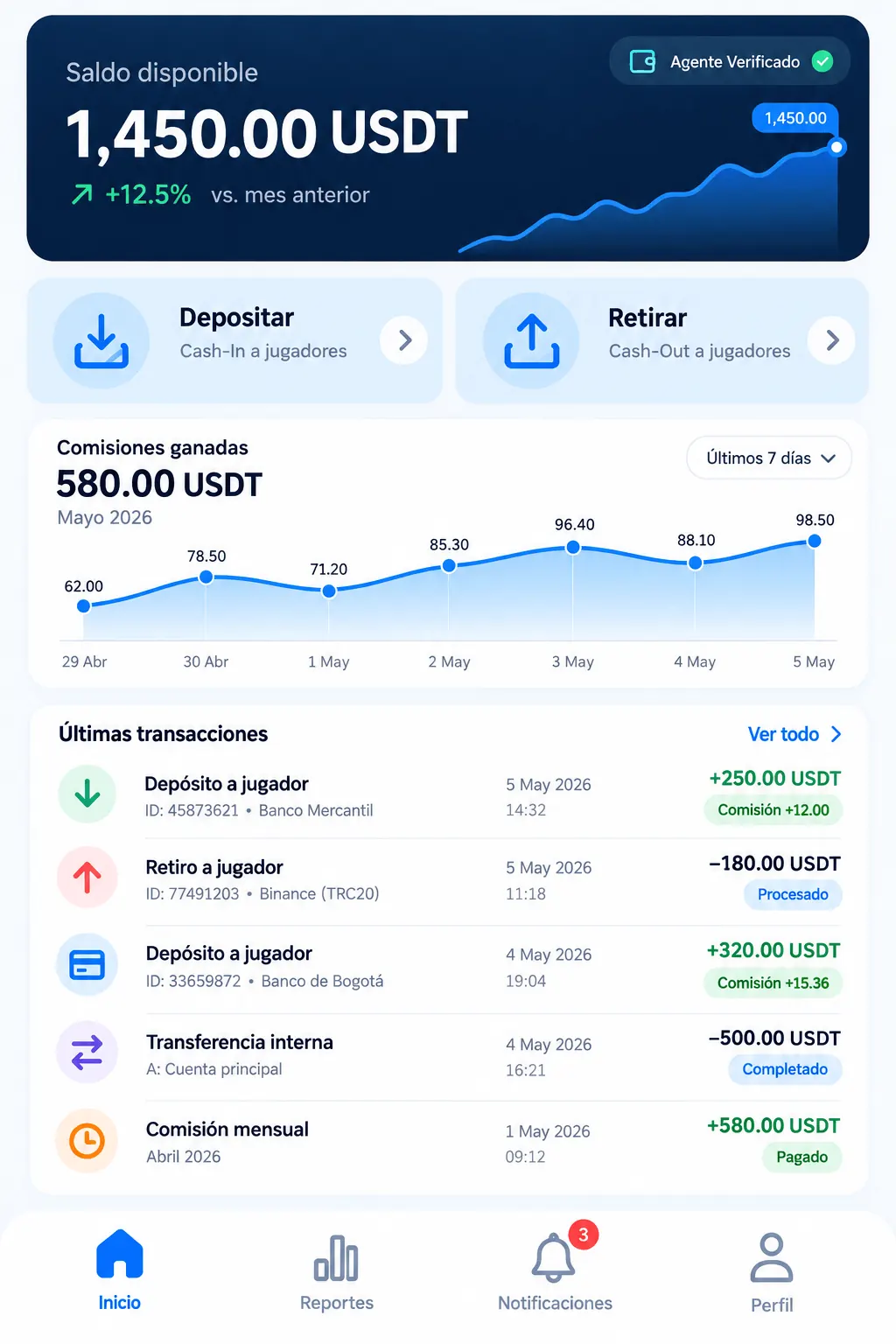
What you can do in the MobCash app
The MobCash app is a cash-desk tool: it lets a registered agent credit player accounts, pay out confirmed withdrawals and keep a running record of every transaction and commission.
- Deposits. Enter the Player ID and amount, confirm, and the player balance is credited while the amount is debited from the agent balance.
- Withdrawals. Enter the Player ID and the one-time confirmation code the player received, then pay out.
- Balance and history. Review the agent balance and the list of completed operations before and after each shift.
- Statistics and commission. See recorded commission against your agreement; rates and payout timing are confirmed by your manager.
- Sub-agents. Where programme terms allow, manage permitted sub-agent activity.
Security checklist for the MobCash app
- Verify the manager first, using the verification methods.
- Install only from the link your verified manager sends; never from search results, groups or forwarded files.
- Keep your agent ID, password and confirmation codes private. Share a player’s code only at the moment you process that player’s withdrawal, inside the app.
- Check the Player ID twice before confirming a deposit; a wrong ID credits another person’s account.
- Use a screen lock on the phone and log out after your service hours.
- If anything looks different after an update, stop and ask your verified manager before continuing.
Common MobCash login and installation problems
| Problem | What to check |
|---|---|
| The file will not install | Confirm you opened the link from your verified manager, that there is free storage, and that installation from that one source is allowed on the phone. |
| Login is rejected | Re-type the agent ID and password carefully; check for a trailing space or the wrong keyboard layout, then ask the manager to confirm the account is active. |
| A verification code does not arrive | Check mobile signal and the date and time settings on the phone, wait a few minutes, then ask your manager. Do not share the code with anyone. |
| Balance looks wrong | Open the transaction history and compare each entry with your own records, then report the exact Player ID, time and amount to the manager. |
| The app asks for a personal payment | Stop. Official balance setup follows your written agreement and never goes to a personal card, wallet or crypto address. |
MobCash and similarly named apps
Several unrelated mobile-money, shopping and exchange apps use “Cash” or “Mob” in their names. MobCash described on this site is the agent cash-desk tool used with 1xBet player accounts; it is not a consumer wallet and not a way for a player to send money to friends. If a listing offers personal transfers, bonuses or “instant income”, it is not the app described here.
Updates and installation problems
Updates also come through your manager’s official channel. If an app will not install, will not accept your credentials, or shows an unexpected payment request, stop and contact the verified manager—do not search for replacement APK files.
MobCash app FAQ
Is MobCash free?
The manager explains any applicable programme terms before activation; do not pay an unknown contact for a download link.
Is MobCash on Google Play?
Do not assume an app-store result is official. Use only the installation route confirmed by your manager.
Can a player use MobCash?
No. MobCash is an agent work tool, not a consumer wallet.
Is there a MobCash APK I can download myself?
Registered agents receive the install file or link from their verified manager. An APK found through search, a forum, a video description or a forwarded chat message cannot be checked and should not be installed.
I forgot my MobCash password. What should I do?
Contact your verified manager through the official channel. Do not use a third-party reset page, and never send your password or a confirmation code to anyone who contacts you first.
How do I update the MobCash app?
Updates are delivered through your manager’s official channel. Do not update from a link posted in a public group or sent by an unknown contact.
Does MobCash work on iPhone?
Yes. MobCash is available for both Android and iPhone (iOS). Ask your verified manager for the current requirements and installation steps before you apply or install anything.
Can I use MobCash on more than one phone?
Access rules are set in your agent agreement. Ask your manager before signing in on a second device, and never share your login with another person.
Not an agent yet?
Learn about the role and application process on the main page.